
Video Creatives
If you want to use a video in your ad, you have two primary options: you can upload a video file directly, or you can use a VAST tag from a third-party server.
As with any other type of Creative, you can add your video from two main locations: either from the Create Campaign wizard or under Campaign details > Creatives.
How to Upload a Video File
-
Select + New Creative.
-
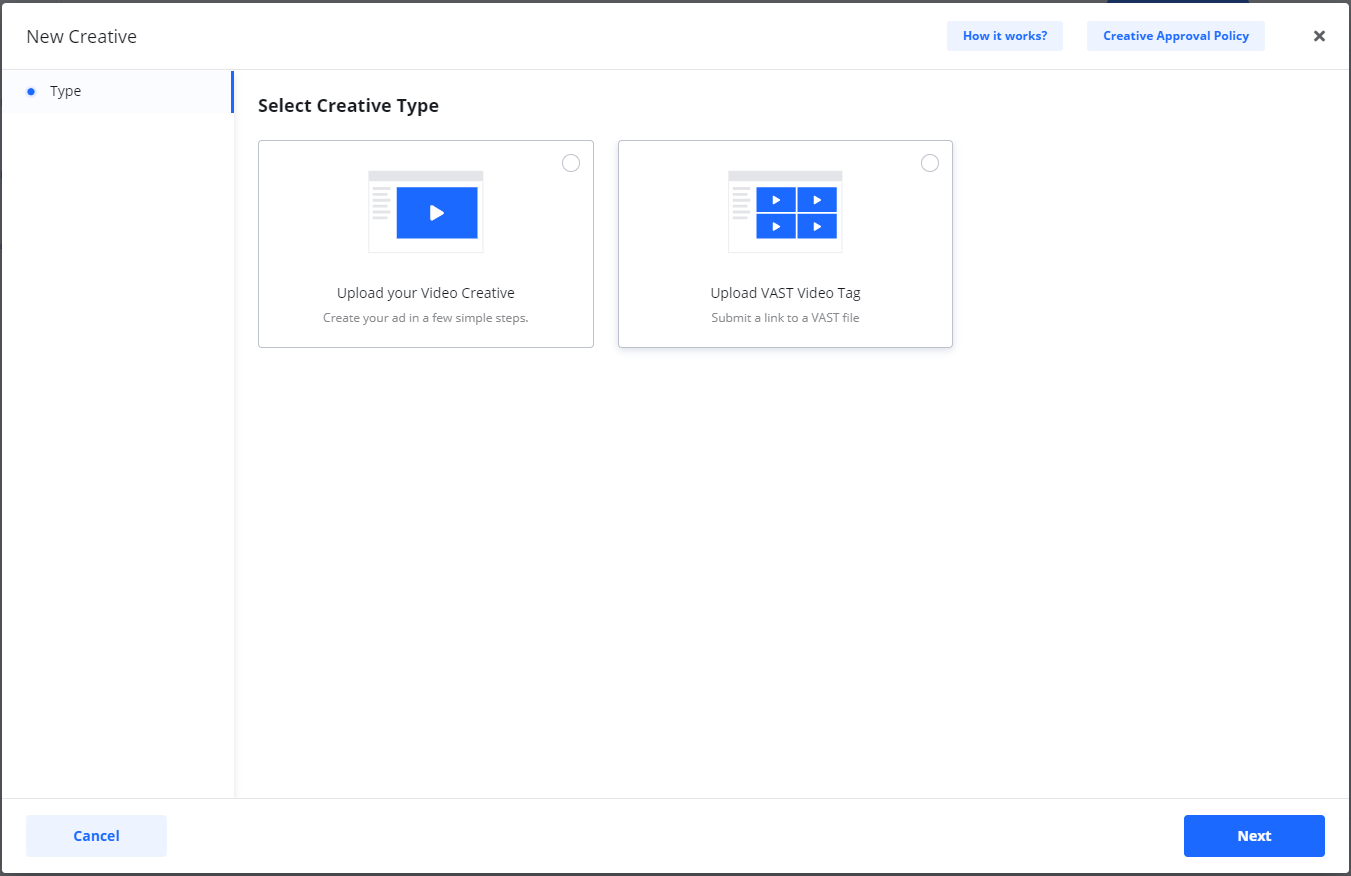
Select the option Upload your Video Creative.
-
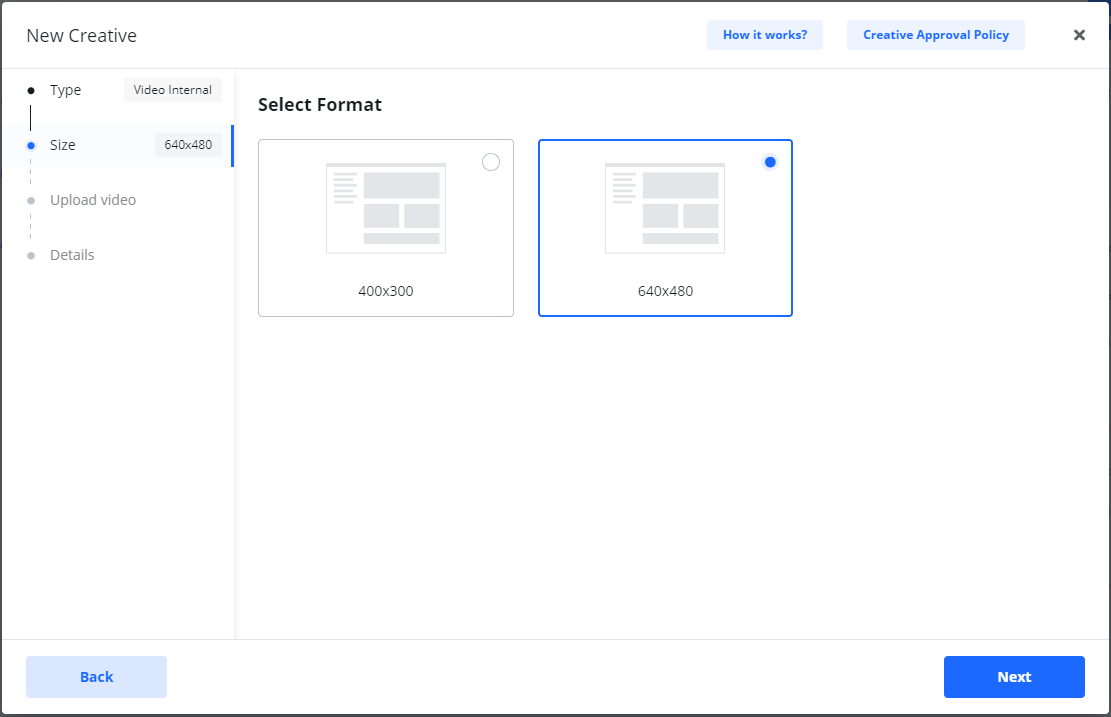
Click Next to proceed to select the size of the placement where your video will be shown.
-
After selecting a size, click Next again to move forward.
-
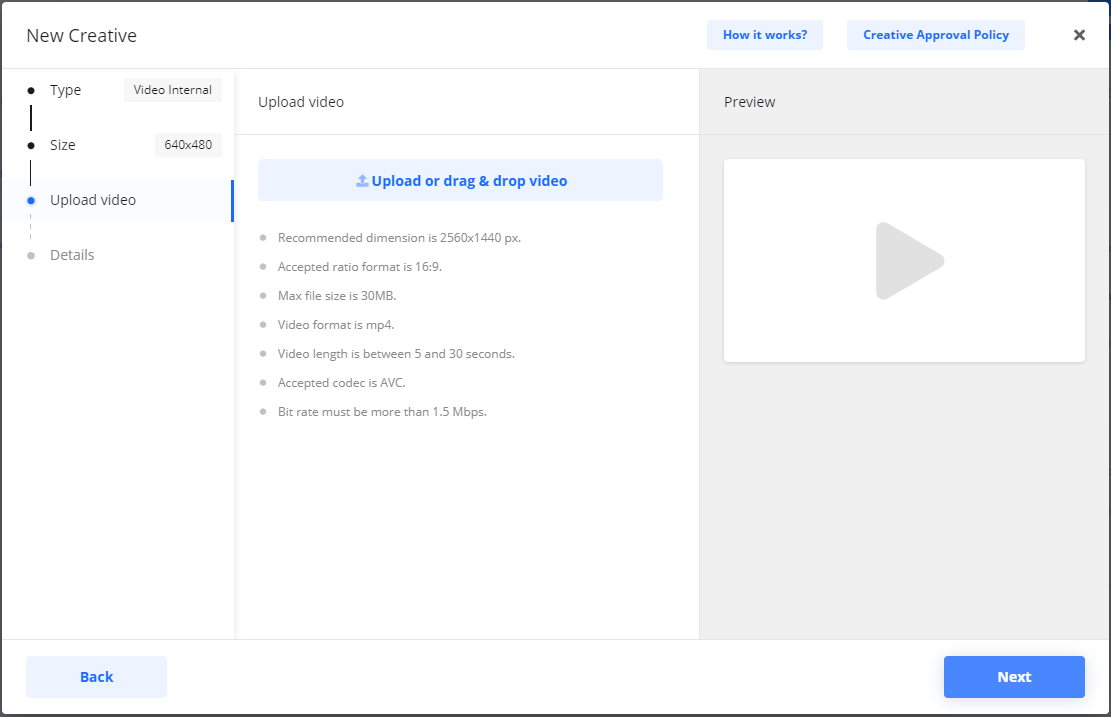
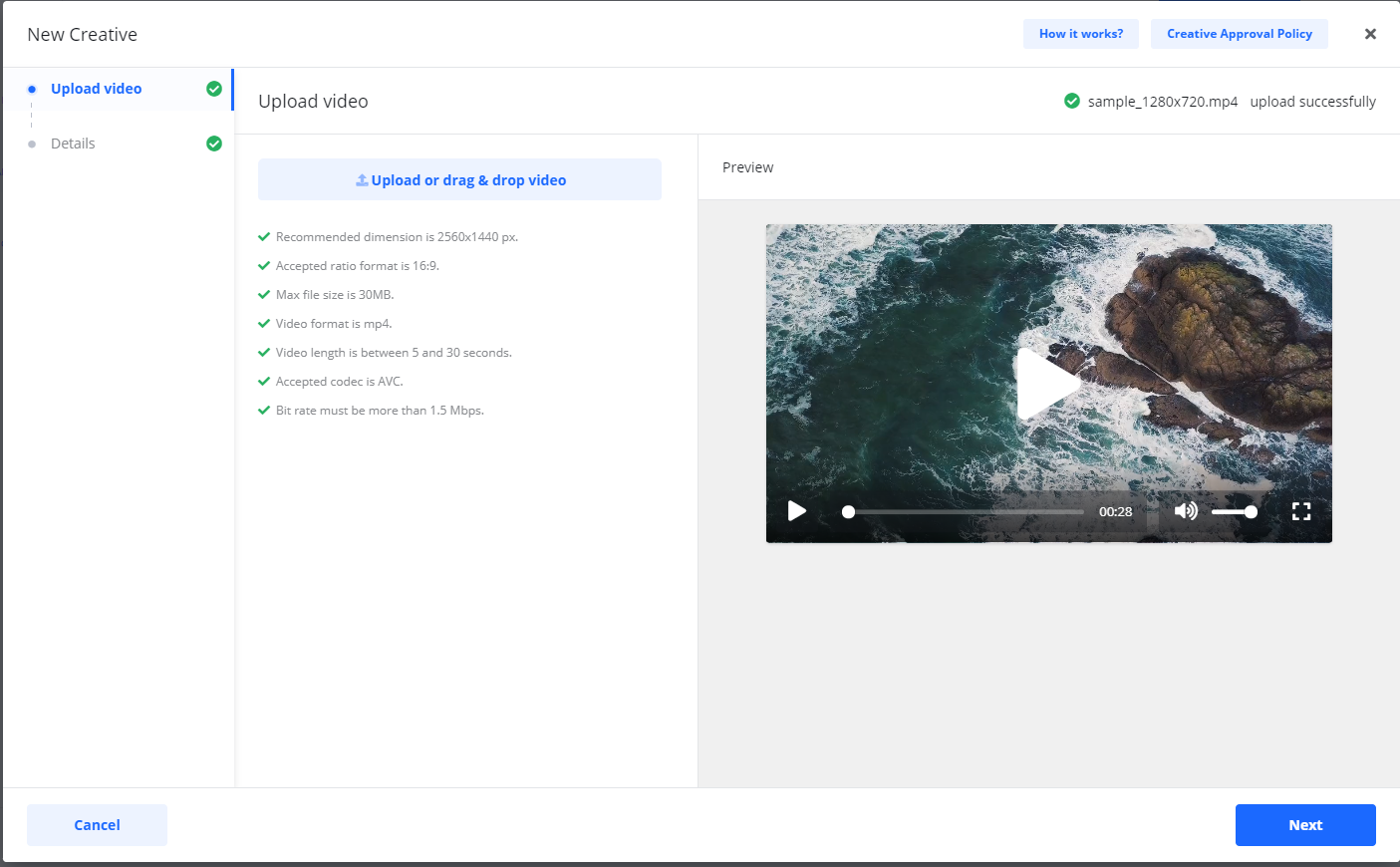
Select Upload to choose a video from your computer, or drag & drop a video file directly into the marked area.

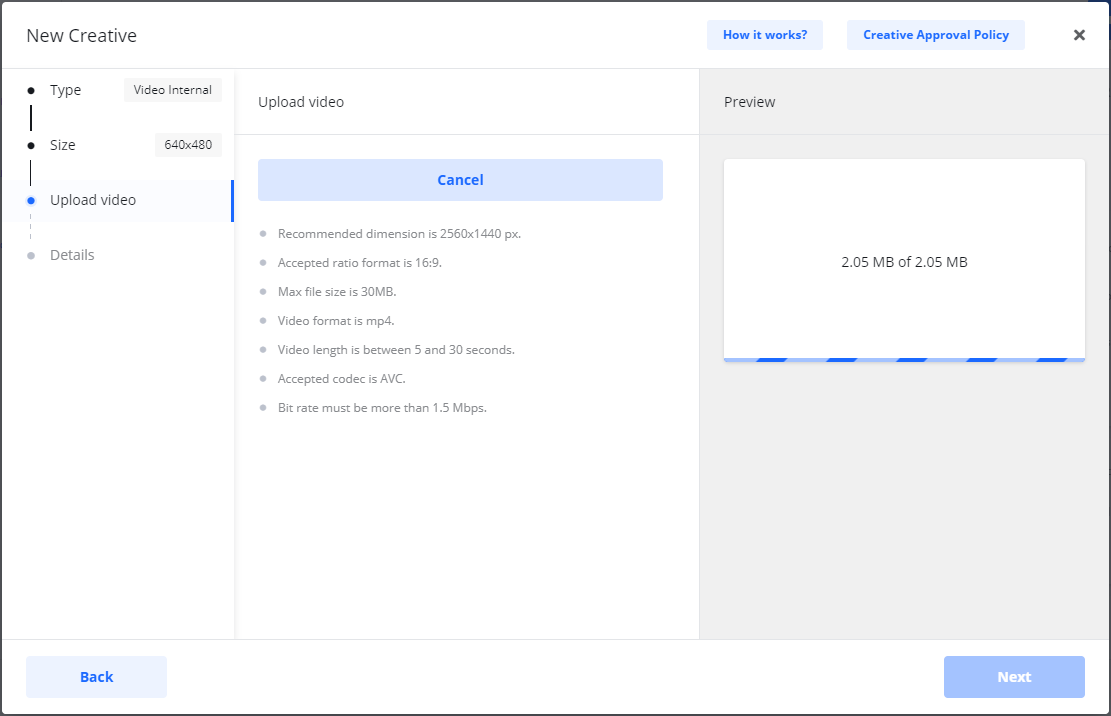
You will see a progress message while the video uploads.
-
Once the upload is successful, your video will appear in the Preview section. Start the video to make sure everything is correct.
-
Select Next to proceed to the final step.
-
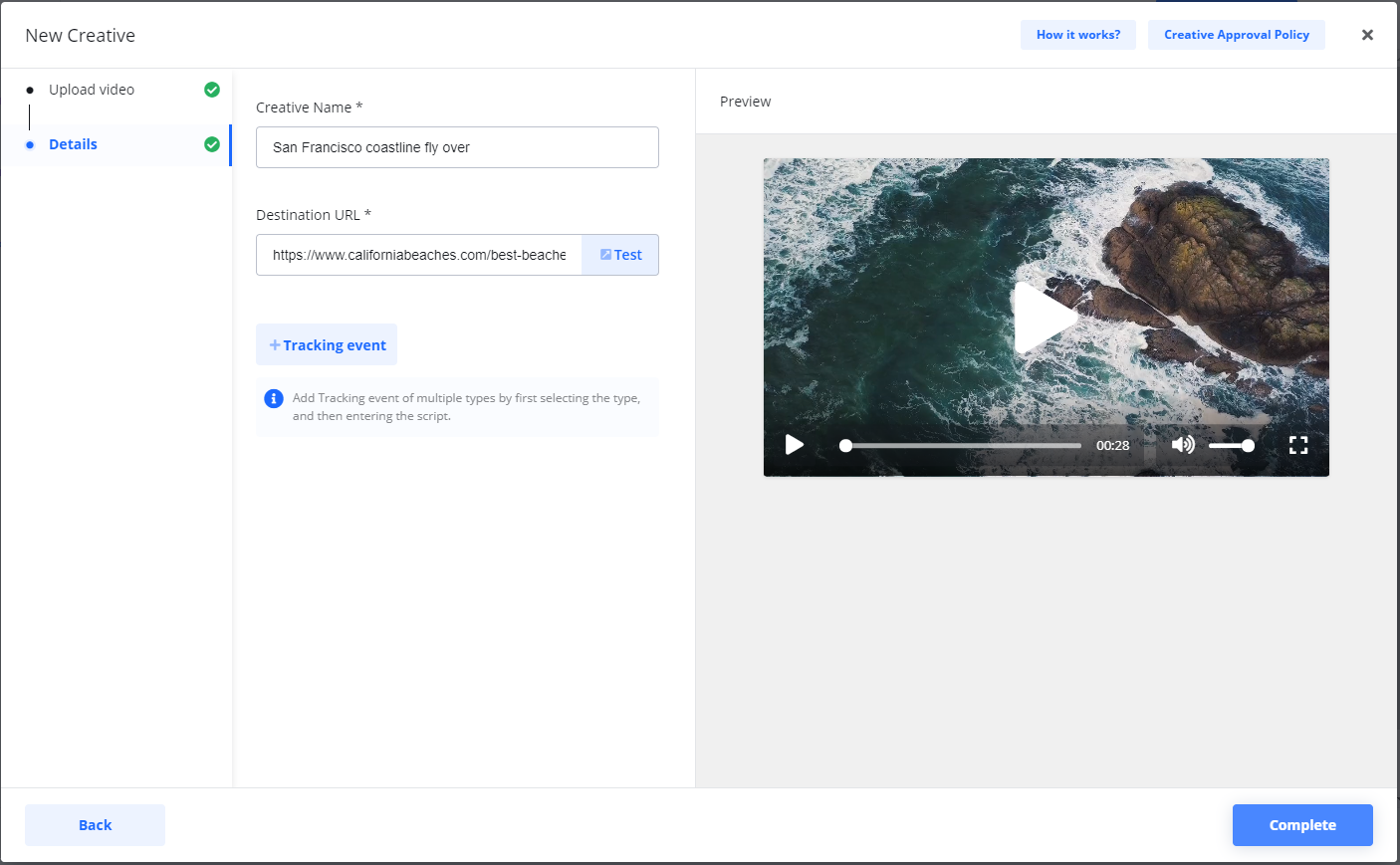
On the Details page, add the required information:
|
Field |
Description |
|---|---|
|
Creative Name |
An internal name for the Creative that only you will see. |
|
Destination URL |
The page your audience will be redirected to when they click your ad. |
|
Tracking Event(s) |
(Optional) You can add multiple third-party tracking URLs for different events (e.g., start, midpoint, complete). 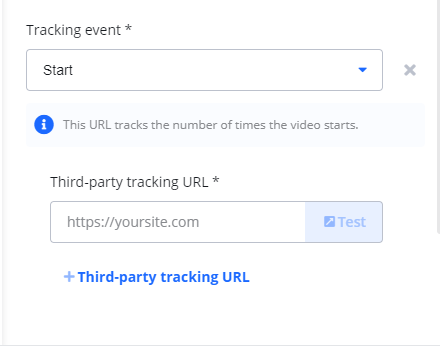
|
-
When you are done, select Complete.
Your new video Creative will now appear in the list for your Campaign.

VAST Video Tag
Use this option when your video ad is hosted on a third-party ad server.
-
Follow the initial steps, but select Upload VAST Video Tag.
-
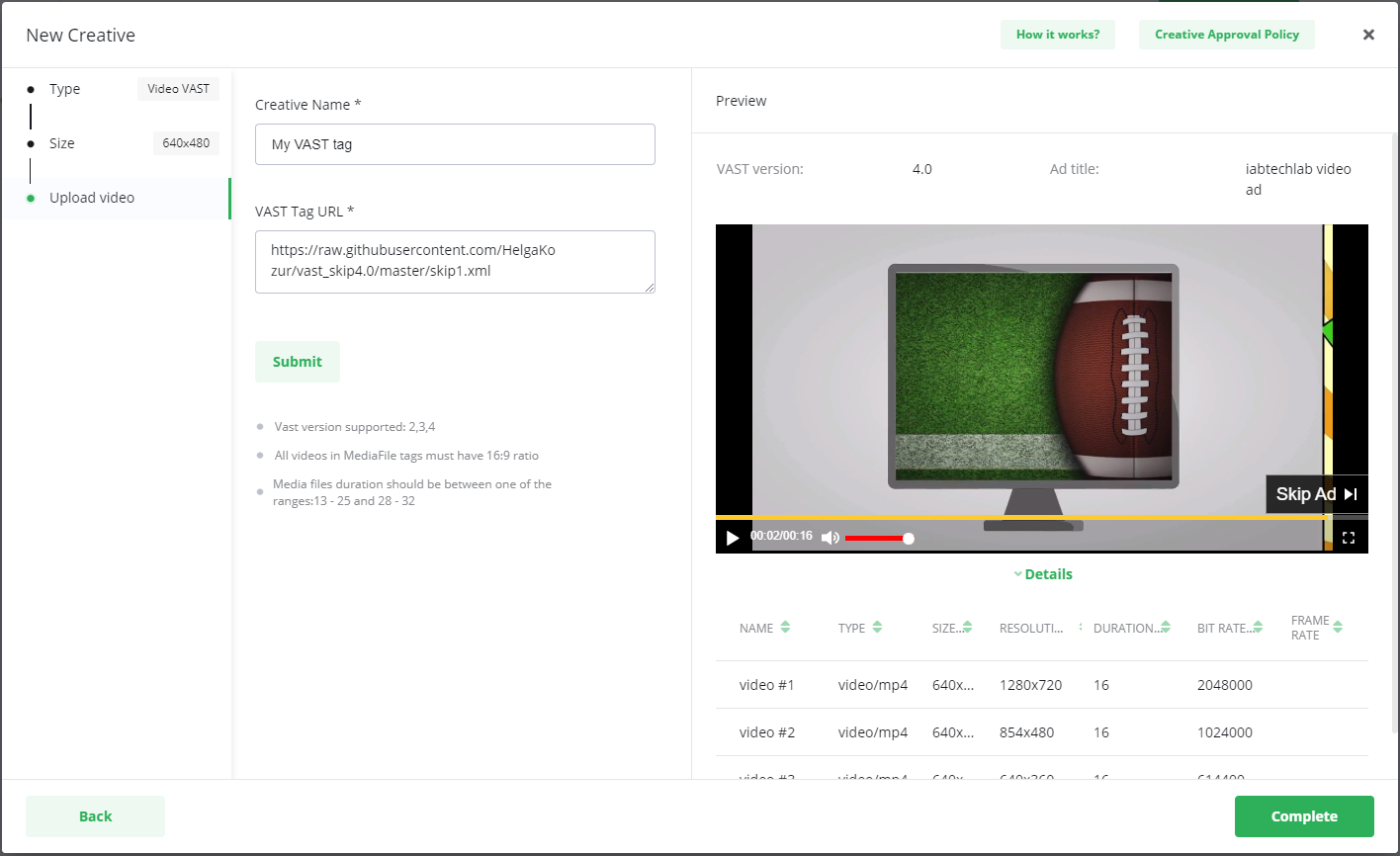
After selecting the size, you only need to provide the Creative Name and the VAST Tag URL.
All other parameters, such as the Destination URL, are handled by the VAST Tag itself.
Supported VAST Versions
The platform supports VAST 2.0, 3.0, 4.0, 4.1, and 4.2 ad tags.
-
Direct InLine/Linear Tags Only: To pass validation, you must use direct InLine/Linear tags. Wrapper or redirect tags (which route to another ad server) are not supported by the validation system and will be rejected with an "InLine tag is required in Ad tag" error during upload.
Video Creative statuses
The status of your video Creative will change as it moves through the approval process:
|
Status |
Description |
|---|---|
|
Draft |
The initial status for all new video Creatives before the Campaign is checked out. 
|
|
Under Review |
The status after you check out and pay for the Campaign. A notification is sent to the Publisher to begin the approval process. 
|
|
Processing |
The status when the Publisher begins the approval process. 
|
|
Approved |
The Publisher has approved the Creative. |
|
Rejected |
The Publisher has rejected the Creative. You will be notified with the reason why. |
|
Active |
The status for an Approved Creative that is currently being shown to audiences. 
|
Video Creative error messages
If your video file or VAST Tag does not meet the system's requirements, you will see a message describing the problem.
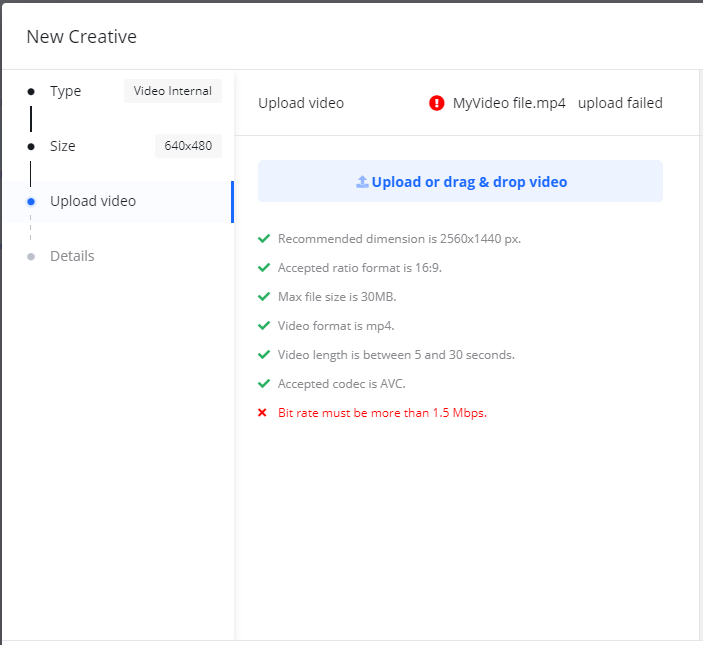
When this happens, you must upload a different video file or provide a different VAST Tag to proceed.
Real-Time AI Review & Feedback
When you upload a video Creative, our automated AI Agent immediately reviews the file for dimensions, length, audio quality, and brand safety compliance.
-
Instant Fixes: If your video is flagged, a clear, natural-language explanation will appear on your screen right away.
-
No Waiting: You can adjust your video file and re-upload the Creative for instant re-assessment without waiting for manual human review queues.
Frequently Asked Questions
Q: What is the difference between uploading a video and using a VAST Tag?
A: Uploading a video is for when you have the actual video file (e.g., an .mp4) on your computer. A VAST Tag is a piece of code from a third-party ad server that hosts the video for you; in this case, you only need to provide the tag URL, not the video file itself.
Q: What does the 'Processing' status mean?
A: The Processing status indicates that the Publisher has started the approval process for your video. This is an intermediate step between Under Review and the final Approved or Rejected status.
Q: My video was rejected. What should I do?
A: The rejection notification will include a reason. You will need to address the issue mentioned and then upload a new video Creative to your Campaign.