
f you want to advertise on an audio channel, the Platform provides two powerful options for creating your ad. You can use the AI Audio generator to automatically create a complete ad script and voiceover, or you can write your own custom script and have it converted into a professional audio ad.
To start, click + New Creative from the Create Campaign wizard or the Campaign Details page.
Step 1: Select Your Channel and Creative Type
-
Select the Audio channel from the available options.
-
Next, choose your preferred Creative type:
-
Make creative with AI: This option uses AI to generate the entire ad script and voiceover based on a few key business inputs.
-
Build your Audio ad: This option lets you write your own custom script and select a voice and background template to compile the ad.
-
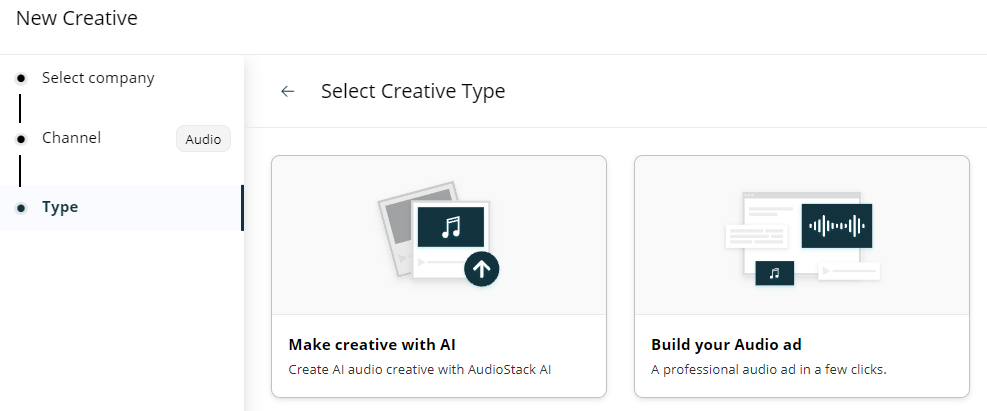
Option 1: Make Creative with AI
Choose this option if you want the automated script generator to write the ad copy and compile the voiceover.
1. Select Ad Length
Choose your desired ad duration from the available formats (e.g., 10-40 sec).
2. Provide Ad Details for Script Generation
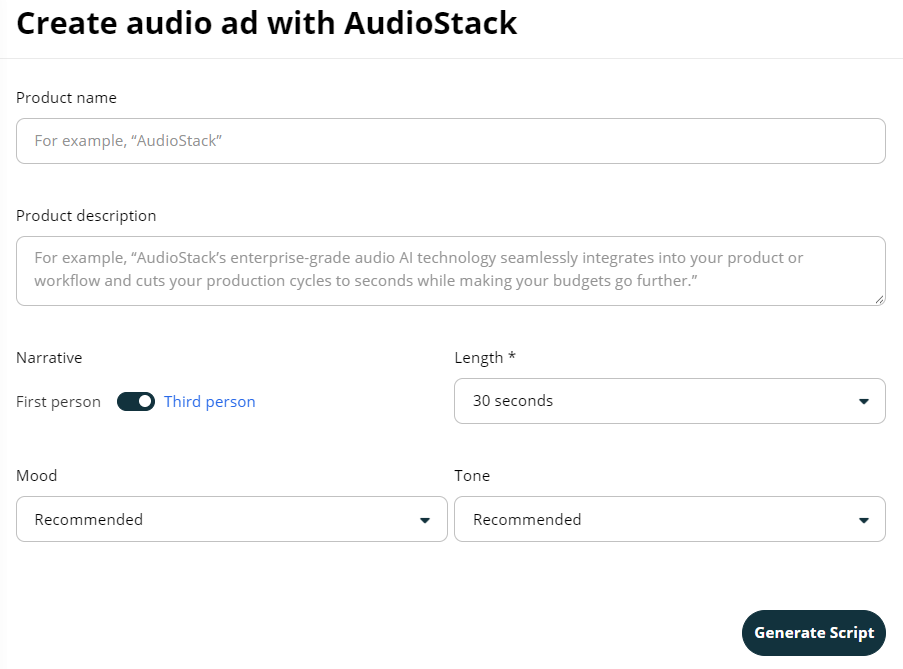
On the "Create audio ad with AudioStack" screen, fill out the required information:
-
Product Name: Enter the name of the product or service being advertised.
-
Product Description: Briefly describe what the product or service does and its key selling points.
-
Narrative: Choose your narration style (e.g., First Person or Third Person).
-
Length: Select the exact final duration (e.g., 30 seconds).
-
Mood: Select a creative mood from the dropdown menu (e.g., Recommended, Persuasive, Inspirational, Professional).
-
Tone: Select a delivery tone from the dropdown menu (e.g., Recommended, Casual, Formal, Enthusiastic).
3. Generate and Refine
-
Click Generate Script. The system will create an optimized script and display it for review.
-
From here, choose your speaker voice and background sound from the AudioStack library.
-
Click Generate Audio to preview your compiled voice track, then click Complete to save and attach it to your Campaign.
Option 2: Build Your Audio Ad
Choose this option if you have already written your own ad copy and want to manually build the ad. All configuration fields (script input, speaker selection, and background soundtracks) are conveniently located on a single screen.
1. Select Ad Length
Choose your desired ad duration from the available formats.
2. Write Your Script and Select Audio
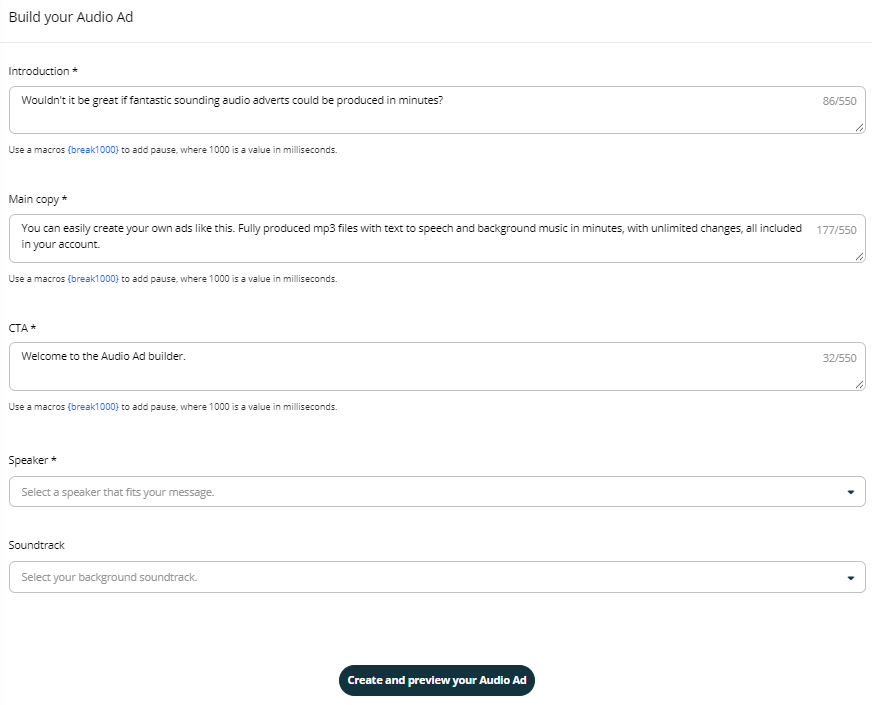
On the "Build your Audio Ad" screen, complete the following fields:
-
Introduction: Write the opening line of your ad.
-
Main Copy: Enter the primary body of your ad script.
-
CTA: Enter your call to action (e.g., "Visit our website today!").
-
Speaker: Select a speaker voice that fits your message from the dropdown menu.
-
Soundtrack: (Optional) Select a background soundtrack from the dropdown menu.
-
Adding Pauses: To insert a natural pause in the voiceover, you can use the
{break1000}macro directly in your text (where1000is the pause duration in milliseconds).
3. Create, Preview, and Complete
-
Click the Create and preview your Audio Ad button. A preview of the final audio will appear in the "Preview" section on the right.
-
Use the player to listen to your ad. If you are not satisfied, you can edit the script or change the speaker and soundtrack, then click the button again to generate a new preview.
-
Once you are happy with the result, click Complete to save the Creative and attach it to your Campaign.
Real-Time AI Review & Feedback
Whether you use the AI builder or create your own ad, the automated AI Agent immediately reviews the final Creative for brand safety and compliance:
-
Instant Fixes: If your Creative is flagged, a clear, natural-language explanation will appear on your screen right away.
-
No Waiting: This allows you to adjust your script or upload a different file for instant re-assessment, without waiting in a manual human review queue.
Frequently Asked Questions
Q: What is the difference between 'Make creative with AI' and 'Build your Audio ad'?
A: Make creative with AI is an end-to-end automated option where you provide brief details about your product, and the system writes the script and generates the recording for you. Build your Audio ad is for when you already have a written script and want to input it manually to choose a voice and sound template on a unified editing screen.
Q: How do I add pauses to my audio script?
A: If you are using the Build your Audio ad option, you can insert the {break1000} macro anywhere in your script text. Replace the 1000 with the number of milliseconds of silence you want to insert (e.g., {break500} for half a second pause).
Q: Can I change my voice or sound templates after generating the audio?
A: Yes. If you are not satisfied with your preview, you can choose any other speaker voice or music template and click Create and preview your Audio Ad again to compile a new version before you click "Complete".