
This option allows you to select specific, more advanced ad formats. These ad formats are built from Creative Templates on the ad server.
Choose this option when you need to use a specialized ad format that goes beyond standard image or native ads.
How to Use Creative Templates
-
From the New Creative step, select the option for Creative templates.
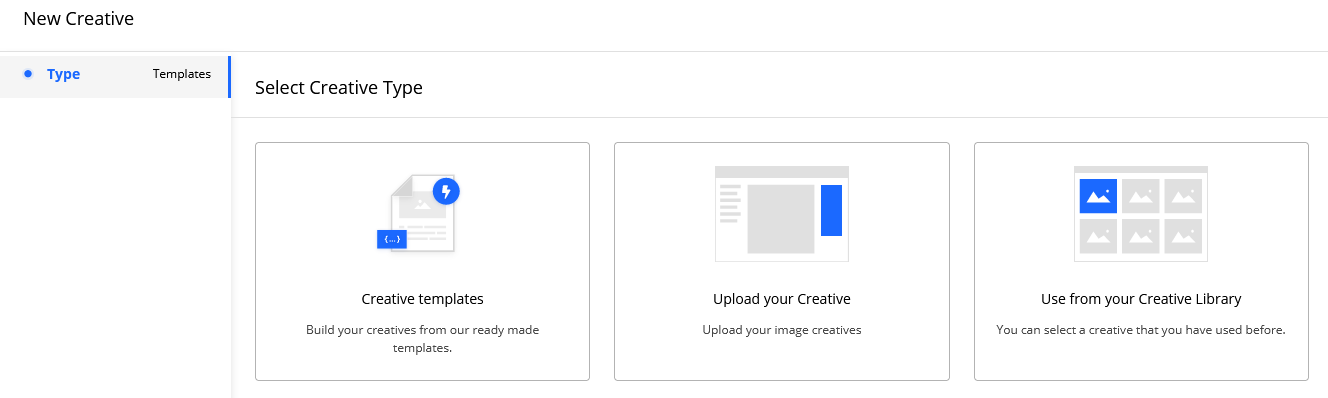
-
Select the specific template suitable for your Campaign.
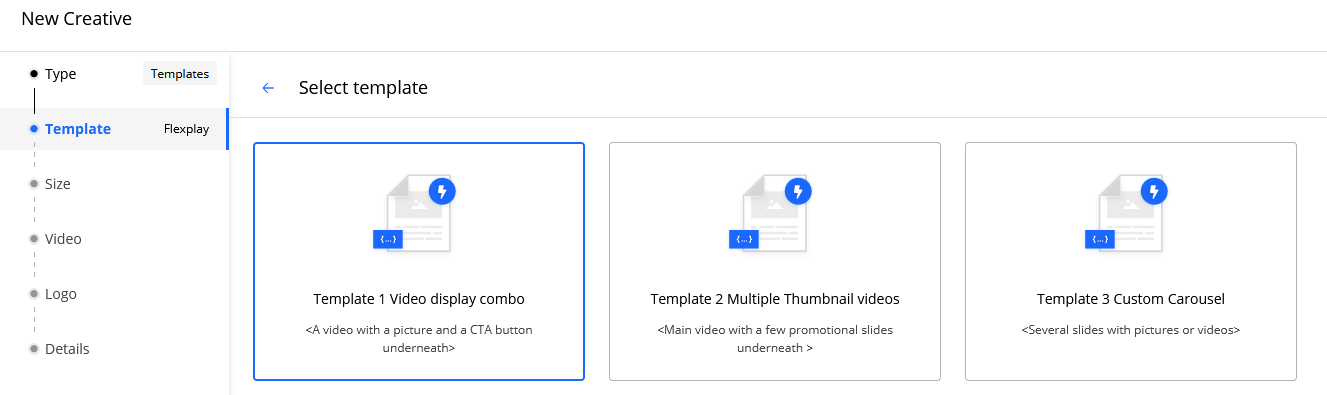
-
After selecting a template, continue the setup by providing your Creative details. This typically includes:
-
Name
-
Images
-
Text
-
Other required information
-
-
Select Complete when you are done.
Frequently Asked Questions
Q: What is a Creative Template?
A: A Creative Template is a pre-built, advanced ad format that is provided by the ad server. These are used for specialized ad types that are not standard image, video, or native ads.
Q: When should I choose the 'Creative templates' option?
A: You should select this option when the specific, advanced ad format you need to use is not available through the other builders (like the Image Ad or Native Ad builders).
Q: What kind of information do I need to provide when using a Creative Template?
A: The specific requirements will vary depending on the template, but you will typically need to provide details such as a Creative Name, images, and text, similar to other Creative types.