
Subscriptions are Campaigns paid on a recurring basis. If you selected Subscription as the Budget Model when you created your Campaign, the Checkout page will show you the details for your selected recurring cycle (Weekly, Bi-Weekly, or Monthly).
Note: Depending on the Platform you are using, the Subscription budget model may not be available.
Authorizing Your Subscription
-
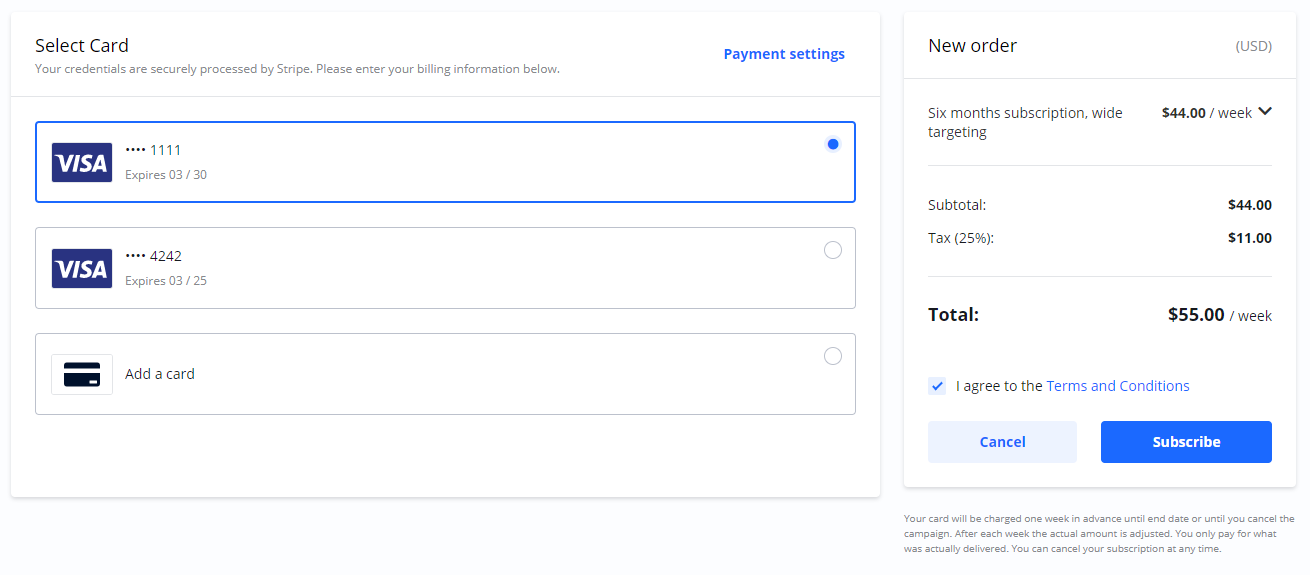
On the Checkout page, select the Card you wish to use for the recurring payments.
-
Agree to the Terms and Conditions.
-
Select Subscribe.
-
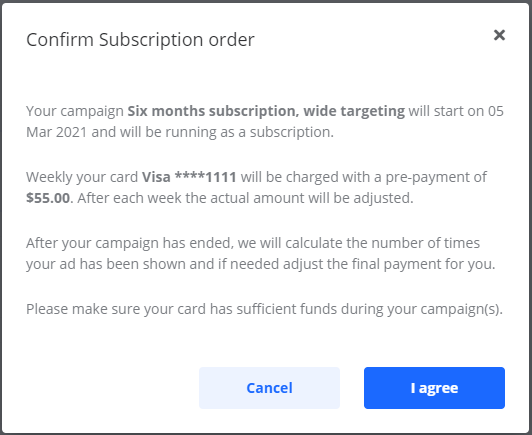
A final confirmation window will appear, outlining the Campaign details for your review.
-
Read the confirmation carefully and select I agree. By doing so, you are authorizing the following:
-
A recurring, pre-authorized payment for the selected billing cycle (Weekly, Bi-Weekly, or Monthly) for the duration of the Campaign.
-
The Platform will charge your card one cycle period in advance.
-
The first charge will occur on the same day your Campaign starts.
-
Instant Cancellation Refund: If you cancel your subscription Campaign or if it reaches its Completed status, the Platform automatically runs an instant refund calculation to credit any unspent balance immediately based on actual delivery metrics. A final 3-day pending window is established to settle any late-arriving delivery logs.
-
Important: Please ensure your selected card has sufficient funds throughout the duration of your Campaigns. You can cancel a Subscription at any time.
Payments during subscription Campaigns
Once your Campaign has started, the payment cycle is repeated automatically until the Campaign’s end date is reached. This cycle includes:
-
The Platform automatically creates a new receipt/invoice for what was delivered during the preceding week. Note how the actual payment for each period may change based on delivery.
-
A new payment and renewed authorization for the upcoming week.
At the end of your Campaign, a final calculation is done, and there may be an additional charge for delivery statistics that arrive after the last transaction.
Locating Your Documents
You can find all payment records for each Order in two locations:
-
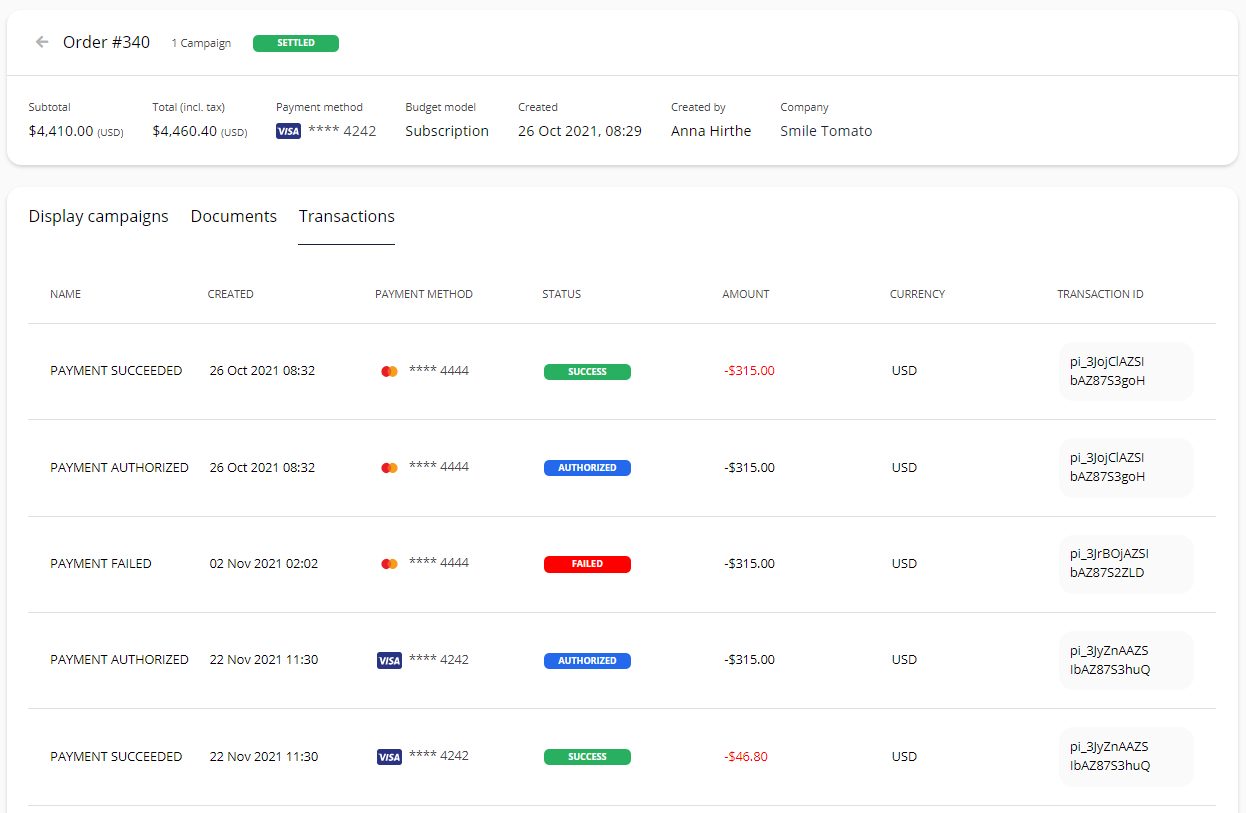
Transactions: Go to Order details > Transactions to see a list of all charges.
-
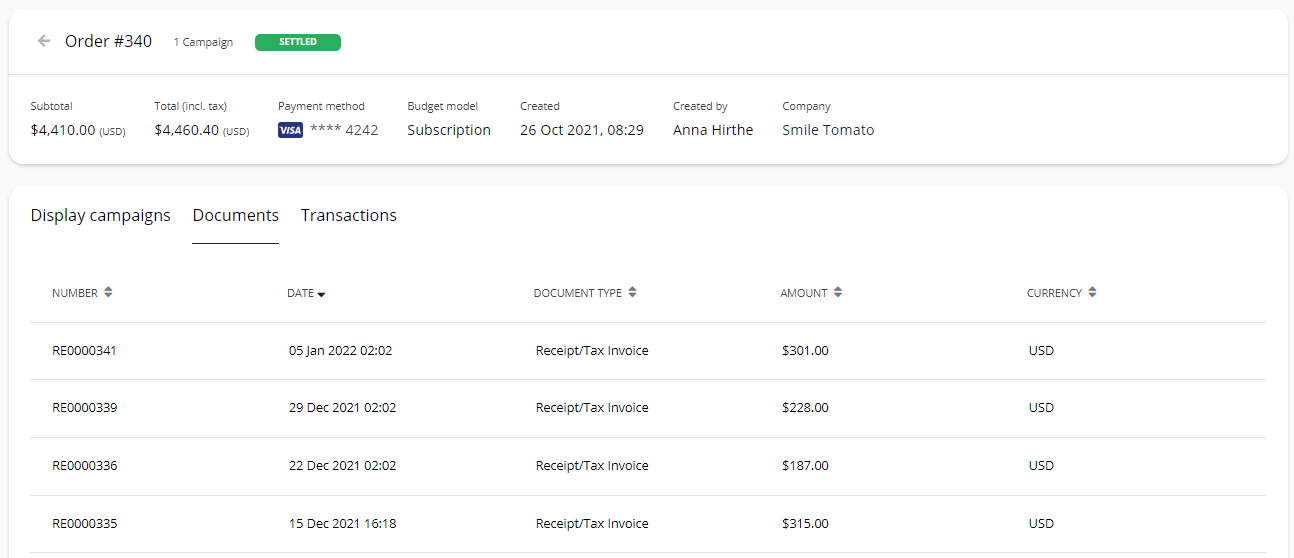
Receipts/Invoices: Go to Order details > Documents to preview and download your receipts.
Failed payments
A payment can fail for several reasons, including insufficient funds, an expired card, or other authorization issues.
When this happens, you will be asked to update your payment method. You will be notified in two ways:
-
An email will be sent to your registered address.
-
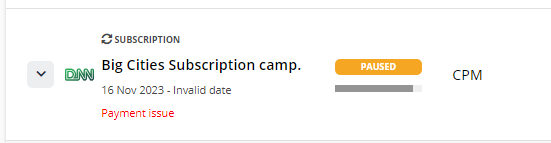
Notifications will appear in the Platform. You will see a "Payment issue" notice on the Campaign list and a warning on the Campaign and Order details pages with a button to update your payment method.
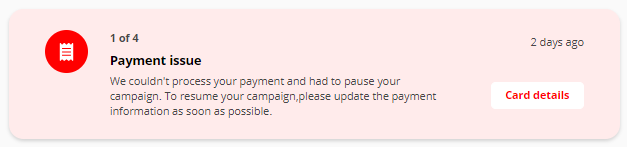
Important: Your Campaign will be automatically Paused while there is a payment issue. While paused, your Campaign will not be shown to your audience.
Updated payments
To resolve a payment issue, you must update your payment method.
-
Click the Card details button from the red warning banner on the Campaign or Order details page.
-
You will be guided through the process to re-authorize the recurring payments.
-
After the payment method is successfully updated, you must check that your Campaign status is Live.
-
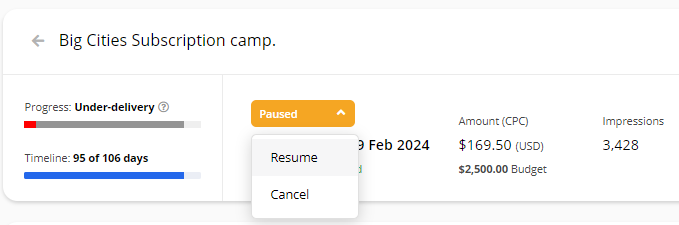
If the Campaign is still Paused, navigate to Campaign details > Status and select Resume.
Once the Campaign is Live, it will be shown to your audience again.
Frequently Asked Questions
Q: What happens if a subscription payment fails?
A: Your Campaign will be automatically Paused, and it will not be shown to your audience until you update your payment method and resume the Campaign.
Q: Where can I find my receipts for recurring subscription payments?
A: You can find and download all receipts under Order details > Documents.
Q: My payment was updated, but my Campaign is not running. What should I do?
A: After updating your payment, you must manually check if the Campaign has resumed. If its status is still Paused, go to Campaign details > Status and select Resume.